Gmail without POP Fetch

Gmail without POP Fetch

Gmail is in the process of removing the POP fetch feature from Gmail shortly (Feb 2026), if you have not already lost access to it. This has caused me to revisit a solution I implemented 10+ years ago, but never publicly documented.

You Know Forwarding is a Thing, Right?

In this announcement, Google suggests that users “set up automatic forwarding (web)”.1 This always been an option with Gmail but it doesn’t work as smoothly as you would like. POP fetching solved a huge issue, this may take a bit to explain.

Sidenote Proper Mail Server Setup
All of this is a waste unless you properly setup your mail server. Things off the top of my head that you need to do:

  • A fixed IP address, it may take months to establish the reputation of your IP, so you really don’t want it to change. This process includes scouring and cleaning your IP from blacklists.
  • SPF DNS Entries
  • DKIM DNS entries and message signing
  • DMARC DNS entries
  • Forward using Sender Rewriting Scheme

When you enable forwarding Gmail scans those forwarded messages for spam. I hear you say, of course it does, I want that. Sure, but in some instances if the message is spammy enough Gmail will reject the delivery of that message:

<**********@gmail.com>: host gmail-smtp-in.l.google.com[192.178.163.26] said:
    550-5.7.1 [35.165.231.100      12] Gmail has detected that this message is
    550-5.7.1 likely unsolicited mail. To reduce the amount of spam sent to
    Gmail, 550-5.7.1 this message has been blocked. For more information, go to
    550 5.7.1  https://support.google.com/mail/?p=UnsolicitedMessageError
    41be03b00d2f7-c6e52fc8ca4si32799293a12.45 - gsmtp (in reply to end of DATA
    command)

This will cause your MTA to bounce the email all the way back to the potential spammer, which may leak your gmail address to them. Not great, not awful. You likely didn’t want the spam anyways, and Gmail is pretty good about spam filtering (although not perfect). However, the mere fact that your mail server forwarded this spammy message means that Gmail may decrease the reputation of your mail server. Awful. Do it enough times and you will get bounce like this:

host alt1.gmail-smtp-in.l.google.com[142.250.97.26]
   said: 421-4.7.28 [redacted IP address] Our system has detected an unusual
   rate of 421-4.7.28 unsolicited mail originating from your IP address. To
   protect our 421-4.7.28 users from spam, mail sent from your IP address has
   been temporarily 421-4.7.28 rate limited. Please visit 421-4.7.28
   https://support.google.com/mail/?p=UnsolicitedRateLimitError to 421 4.7.28
   review our Bulk Email Senders Guidelines. d25si107020vsk.333 - gsmtp (in
   reply to end of DATA command)

Really awful!

Worse? You may not even know this is happening. These messages will appear in your mail logs, who reads those? These messages will also appear in the bounced message that is sent back to the spammer. So in all likelihood, you may not know this is happening. You first indication may be mail that is delivered slowly or legitimate emails bouncing back to senders because Gmail thinks your mail server is spammy.

In short, forwarding may work for you, or you may only think forwarding is working for you.

Be Less Spammy

I can hear you say ‘then just don’t forward spammy messages to Gmail.’ To which I respond, then don’t send me spammy messages!

But seriously, the answer is clearly to stop spammy messages before they get forwarded to Gmail. The best roll your own mail server solution that I know of for this is SpamAssassin. Yup, it still works … mostly.2

So, you can setup your MTA to reject messages above a certain SpamAssassin level. That should solve the Gmail reputation issue. Except, now you have another issue, or at least I do.

SpamAssassin isn’t perfect, it misclassifies (not a word but it should be) things in both directions. You could probably find a happy middle ground, but still, I am not comfortable with the possibility that email messages may just be discarded. When you are stuck waiting for that stupid 2-Factor email code a small voice will nag in the back of your head, did SpamAssassin delete that email on me?

How did POP Fetching Solve this?

Finally, 500 words in and now we hit the f#&*ing point of this post!3

Well, instead of rejecting spammy messages, we deliver them locally to the user spam_email and then Gmail would fetch those messages over the POP protocol. The cool thing was that Gmail would still spam process them, and would move things incorrectly marked spam into your inbox and only put Spam in the Spam folder.

Cool.

It was cool, for many years. It had its drawbacks but it worked.456

But Alas, POP Access is no More

I can see Google’s perspective here. This is a weird feature to maintain. But given the small uproar that has occurred and the amount of time that Google kept this arcane feature alive, it seems that this was used by more people than you would imagine.

IMAP to the Rescue

Honestly, this is the real point of the post. My workflow above remains largely the same, except now I use imapsync to push the mail to Gmail rather than a POP pull.

Benefits

This has benefits, well one, namely I now control the frequency of when this happens. This is better, kinda of. Previously if you clicked the refresh icon Gmail would force a pull from the POP accounts right then. Although, you could only do this once ever 10ish minutes.

Drawbacks

No more spam filtering by Gmail. So, I now put everything into the Spam folder. This is a bit of a bummer, I raised my spam threshold a bit to decrease the false positives.7

The End

That is pretty much it. The workflow looks like:

  • Postfix receives mail, routes it to SpamAssassin
  • SpamAssassin scores the email, and routes it back to Postfix
  • If spammy, Postfix redirects it to local account email_spam.
  • Otherwise it forwards it on to Gmail using SRS forwarding
  • A cronjob runs every 5 minutes and uses IMAPSync to push messages in email_spam to Gmail/Spam

  1. Yes, I realize just signing over my mail duties to gmail is an option. But I personally don’t want to do that, I have other uses of my mail server besides just my personal email. Plus, I believe that currently costs about $10/month and likely more in the future. But if it works for you, that is certainly easier. ↩︎
  2. I am not the person to discuss all the tweaks you can do with SpamAssassin, that is a long path and I am sure there are many improvements I could make. ↩︎
  3. Comically, no, this is still not the point of this post. ↩︎
  4. The main drawback being that it only refreshed these POP accounts about every 20 minutes. But, you could have up to 5 POP accounts. Gmail would then check one account every 4ish minutes, it wasn’t always perfect, but it generally worked that way. If you map 5 account names to the same user in Dovecot, which I did, then your POP account was refreshed 5 times faster than everyone else’s. ↩︎
  5. A second footnote? Yeah, the prior note was getting a bit long. The other oddity, was that Gmail would at times refuse to download some of the messages from the POP account. These were mostly messages containing viruses, so it wasn’t a big deal. Plus these messages would just get left behind on the server, so you could ssh in and use mutt to read them in a pinch if something went wrong. ↩︎
  6. A third footnote … come on! Well this was less a Gmail problem than a me issue. For a while I had a hard time getting certbot to properly restart Dovecot after updating the SSL cert. The POP access would silently fail in Gmail (I said less a Gmail problem) unless you looked in the settings page where it would have a big red banner. Sometimes when this happened I would have mail delayed for weeks. When I reconnected it, you would then immediately see what types of messages SpamAssassin has false positives for. The best solution ended up being a forced reload of Dovecot every night at 2am, maybe not ideal, but super easy. ↩︎
  7. I do have a trick for teaching the Bayesian filtering spam and ham that helps. If I get the impulse maybe I will write that up sooner than 4 years from now. ↩︎

How to Migrate from Darktable to Lightroom Classic

How to Migrate from Darktable to Lightroom Classic

tldr;

  1. Copy your Darktable sidecar files from <basename>.<extension>.xmp to <basename>.xmp
    • So for example DSC_05183.nef.xmp should be copied to DSC_05183.xmp
  2. Import your photos into Lightroom
  3. Ratings, Tags, Color Codes, and other Exif Information will be imported into Lightroom. But none of your development settings will be imported (exposure, tone curve, …)
  4. You can now edit the photo in either Lightroom or Darktable without affecting the other application. However, further changes to ratings, tags, color codes, and other exif Information will not be synchronized between the two applications. This data is only synchronized on the initial import.

The Full Story

Background

I have been a Darktable user for 10 years. I have ~35,000 raw photos totaling ~430 GB in my Darktable library. I developed ~5,000 of those photos and around 2,500 were good enough to export for print or to share with other people.

Why I left Darktable

I recently decided to switch to Lightroom for the following reasons:

  1. I upgraded to a Nikon Z8, which has an optional High Efficiency ★ Raw setting using the ticoraw codec. This results in images that are comparable to lossless compression but 50% the size. In reality, my results are 60% of the size (~55MB -> ~32MB). This results in a larger buffer, more images on the cards, and less space on my hard drive. Sadly this format is not compatible with any open source projects, at least not yet. Tico raw is covered by patents, it isn’t clear if they would share the decoding sdk with an open source project.
  2. The AI features in Lightroom are fantastic (Denoise, Deblur, Masking, …) plus the external programs like Topaz and I suspect that these features will not be something Darktable will be able to reproduce anytime soon.
  3. The Darktable updates have made it too complicated for me to enjoy using the application. There are too many knobs to turn, these knobs seem to change dramatically in major releases, and too much photo theory to learn in order to understand how to use the knobs effectively.

Of course, Lightroom is subscription based, which the one drawback but sadly is a big drawback.

What can you import from Darktable? As noted above, only the metadata, specifically ratings, keywords, and other exif information. But you cannot import any of your development work.

This is acceptable to me because after I finish developing a photo, I export it and rarely go back to edit it again. Rarely means of my ~3,000 photos that I have exported I would guess only ~100 have I gone back to re-edit. That said, often when I have gone back, I have started over from scratch generally because darktable or my developing skills have improved since the last edit. In the future, I can either re-export it from Darktable, or I can start over in Lightroom. Basically the same choices I always had.

Python Argparse: Group Sub-Parsers

Python Argparse: Group Sub-Parsers

Python argparse has become a staple package in python in part due to its ease of use.

However, I recently came across an issue while using it on InsteonMQTT which makes extensive use of sub-parsers. Other than sorting, there is no mechanism to organize sub-parser objects to make them more readable.

This seems like a known issue going back to at least 2009 with no indication that it will be solved. Luckily, Steven Bethard was nice enough to propose a patch for argparse that I was able to convert to a module extension very easily.

In short, the following is the module extension argparse_ext.py:

#===========================================================================
#
# Extend Argparse to Enable Sub-Parser Groups
#
# Based on this very old issue: https://bugs.python.org/issue9341
#
# Adds the method `add_parser_group()` to the sub-parser class.
# This adds a group heading to the sub-parser list, just like the
# `add_argument_group()` method.
#
# NOTE: As noted on the issue page, this probably won't work with [parents].
# see http://bugs.python.org/issue16807
#
#===========================================================================
# Pylint doesn't like us access protected items like this
#pylint:disable=protected-access,abstract-method
import argparse


class _SubParsersAction(argparse._SubParsersAction):

    class _PseudoGroup(argparse.Action):

        def __init__(self, container, title):
            sup = super(_SubParsersAction._PseudoGroup, self)
            sup.__init__(option_strings=[], dest=title)
            self.container = container
            self._choices_actions = []

        def add_parser(self, name, **kwargs):
            # add the parser to the main Action, but move the pseudo action
            # in the group's own list
            parser = self.container.add_parser(name, **kwargs)
            choice_action = self.container._choices_actions.pop()
            self._choices_actions.append(choice_action)
            return parser

        def _get_subactions(self):
            return self._choices_actions

        def add_parser_group(self, title):
            # the formatter can handle recursive subgroups
            grp = _SubParsersAction._PseudoGroup(self, title)
            self._choices_actions.append(grp)
            return grp

    def add_parser_group(self, title):
        #
        grp = _SubParsersAction._PseudoGroup(self, title)
        self._choices_actions.append(grp)
        return grp


class ArgumentParser(argparse.ArgumentParser):
    def __init__(self, *args, **kwargs):
        super().__init__(*args, **kwargs)
        self.register('action', 'parsers', _SubParsersAction)

And the following is a simple test file test.py:

import argparse_ext


parser = argparse_ext.ArgumentParser(prog='PROG')
cmd = parser.add_subparsers(dest='cmd')
grp1 = cmd.add_parser_group('group1:')
grp1.add_parser('a', help='a subcommand help', aliases=['a1','a2'])
grp1.add_parser('b', help='b subcommand help')
grp1.add_parser('c', help='c subcommand help')
grp2 = cmd.add_parser_group('group2:')
grp2.add_parser('d', help='d subcommand help')
grp2.add_parser('e', help='e subcommand help', aliases=['e1'])

parser.print_help()

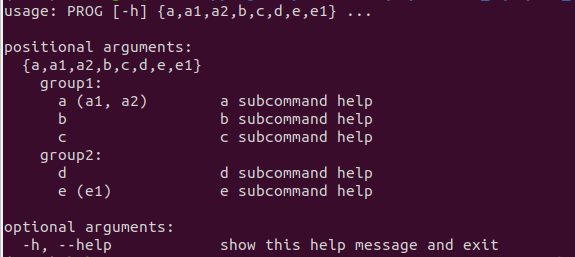
Which produces this nice command line output:

...$ python test.py
usage: PROG [-h] {a,a1,a2,b,c,d,e,e1} ...

positional arguments:
  {a,a1,a2,b,c,d,e,e1}
    group1:
      a (a1, a2)        a subcommand help
      b                 b subcommand help
      c                 c subcommand help
    group2:
      d                 d subcommand help
      e (e1)            e subcommand help

optional arguments:
  -h, --help            show this help message and exit

Note: There is a warning that this code may not work with parents argument of ArgumentParser, but I can live with that.

Marlin Unified Bed Leveling Tips

Marlin Unified Bed Leveling Tips

I am by no means an expert on 3D Printing. If you are looking for someone who is, I highly recommend Michael at Teaching Tech.

However, I did learn a few things while trying to level the bed of my Creality CR10 V2. I chose to use the Unified Bed Leveling system in Marlin. You should read up on it on the Marlin site.

Here are the few things I learned that I didn’t see mentioned anywhere else.

Choose Measurement Points to Maximize Sensor Reach

For most setups, the bed leveling sensor cannot reach the entire bed because the sensor is offset from the print head. For the CR10 with a BLTouch, the sensor is offset about 46mm on the X axis. Since the printer head limit on the x axis is 0, this means that the sensor cannot reach any point less than 46mm on the x axis.

I want to maximize the portion of my bed that is measured, so I chose Marlin settings that would generate a measurement grid with an x-column as close to 46mm without going below that limit.

The formula for determining the locations of the measurement points is:

X point = UBL_MESH_INSET + Xpt((X_BED_SIZE – 2 x UBL_MESH_INSET) / (GRID_MAX_POINTS_X – 1))

Y point = UBL_MESH_INSET + Ypt((Y_BED_SIZE – 2 x UBL_MESH_INSET) / (GRID_MAX_POINTS_Y – 1))

Where Xpt and Ypt are the indexes of the X and Y points from 0 to (GRID_MAX_POINTS_[XY] – 1).

In my case UBL_MESH_INSET = 10 X_BED_SIZE = 310 GRID_MAX_POINTS_X = 9 Y_BED_SIZE = 310 GRID_MAX_POINTS_Y = 9

So in my case, the X position of the second column of measurement points is: 10 + 1((310 – 2 x 10) / (9 – 1)) = 46.25. This is conveniently just slighly higher than my limit of 46mm, meaning I am measuring the bed as far left as I can and getting as much from my level sensor as possible.

Hope this helps.

* If you have altered less commonly used setting such as [XYZ]_MIN_POS, [XYZ]_MAX_POS, or MANUAL_[XYZ]_HOME_POS you made need to adjust this formula.

Defined Your Calibration Points to Match a Measured Point

This one seems like a no-brainer, and I am a little surprised that Marlin doesn’t do this by default.

The UBL system contains an option that can transform a mesh based on a 3 point measurement using command G29 J. You can read about how this all works on the Marlin site.

By default, Marlin defines the 3 measurement points as (X Min, Y Min), (X Max, Y Min), and (X Midpoint, Y Max). However, this can lead to larger errors if one or more of the calibration points does correspond to an existing measured points.

This error happens because the bed mesh outside of the measured points is an extrapolation, an educated guess. This extrapolation is not perfect, and the error in an extrapolated point will always be equal to or greater than the error at a measured point.

So, if any of your calibration points is an extrapolated point, then your error is greater than it needs to be.

This is an easy problem to solve, simply determine the three points on your measurement grid that create the largest triangle possible. Generally the three points are (XMin, YMin), (XMax, YMin), and (XMidpoint, YMax). You can calculate these points using the formulas in the sections above.

In my case these points are (10, 10), (290, 10), and (191.25, 290).

These can be defined in Configuration_adv.h as follows:

#if EITHER(AUTO_BED_LEVELING_3POINT, AUTO_BED_LEVELING_UBL)
  #define PROBE_PT_1_X 10
  #define PROBE_PT_1_Y 10
  #define PROBE_PT_2_X 290
  #define PROBE_PT_2_Y 10
  #define PROBE_PT_3_X 191.25
  #define PROBE_PT_3_Y 290
#endif

Do Not Edit the Calibration Points

UBL allows users to edit the measured points on their mesh. Whether to enter values that cannot be measured because they are outside the reach of the level sensor, or to correct for errors in the measurement.

However, it is important, not to alter the values of the 3 calibration points.

This is because, if you change these values, the next time you run a 3 point calibration, the measured values will be close to the original, but till no longer match the mesh. Marlin will attempt to tilt or translate the bed mesh to match this discrepancy, which will cause the mesh to be wrong.

So instead, check the bed at all 3 calibration points. If adjustments need to be made, change the NOZZLE_TO_PROBE_OFFSET or from the Marlin UI in “Configuration” -> “Probe Z Offset”. If the discrepancy between the three calibration points is not identical, you will have to select the best value.

Again, hope this helps. Contact me if you have questions.

Mosquitto SSL/TLS Error SSL routines:ssl3_get_record:wrong version number

Mosquitto SSL/TLS Error SSL routines:ssl3_get_record:wrong version number

Up front, I will admit that I ran into this error because I did not read the documentation fully. However, in my defense, I feel like the error reporting could be clearer and the imprecise error message caused me to waste a bunch of time looking in the wrong place. Hopefully, this will prevent someone else from wasting their time as well.

Using an SSL/TLS Connection with Mosquitto MQTT

This is not a post about how to setup SSL/TLS on a Mosquitto broker. That has been well covered. Personally I followed the Mosquitto docs for instructions generating the necessary certificates and keys. Since I am using the Home Assistant Mosquitto Add-On I followed it’s instructions for configuring the Mosquitto Broker.

However, when I tried to connect using the mosquitto_sub command line tool, all I got was this:

 Client mosq-WzCVS53wMuaPbU8oNT sending CONNECT
 Client mosq-WzCVS53wMuaPbU8oNT sending CONNECT
 Client mosq-WzCVS53wMuaPbU8oNT sending CONNECT

When I checked the logs of the Mosquitto broker, all I saw was this error

Client connection from XXX.XXX.XXX.XXX failed: error:1408F10B:SSL routines:ssl3_get_record:wrong version number.

So I spent an hour trying different tls_versions and ciphers with no luck.

You must Specify a cafile or capath to Enable Encryption

It is that easy. If you specify the correct --cafile or a --capath in your mosquitto_sub command, things should work.

I would have expected a better error message from the broker or the client. I also was under the impression that using the --insecure flag would have allowed testing without the --cafile. I was wrong.

Of course, in hindsight the documentation clearly notes this requirement.

mosquitto_sub man page excerpt.
Yup, that is pretty clear.